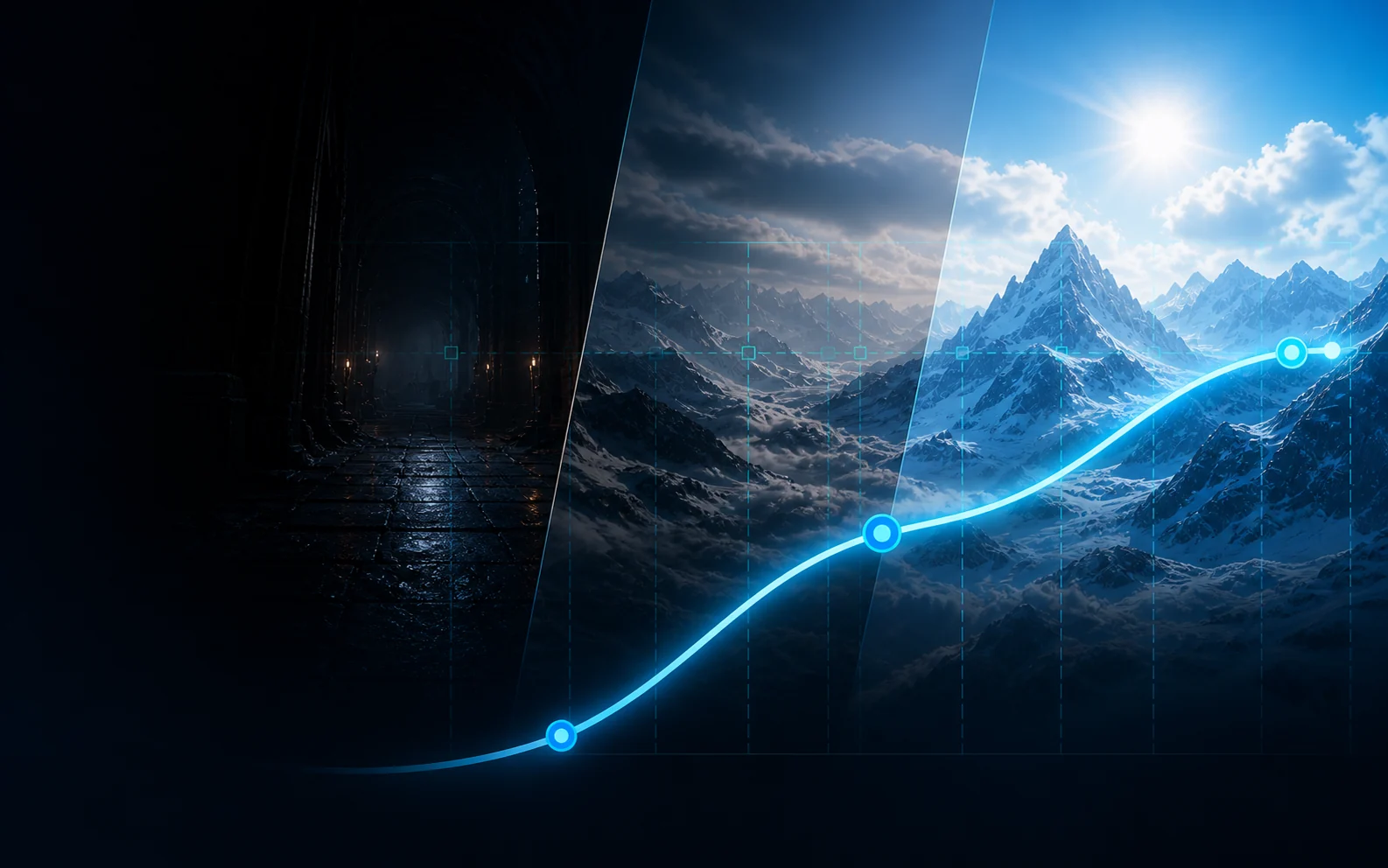
Multi-zone sampling reads representative areas of the selected display instead of trusting one fixed preset.
Broad, Focused, or Spot Probe Content-Aware Display Tuning For Windows
Your Screen Changes.
SceneTune Adapts.
SceneTune adjusts gamma, brightness, and contrast in real time, revealing dark scenes, calming bright screens, and keeping normal content balanced.
Local processing HDR-aware Safe restore
SceneTune in motion
Live App Preview
Why Adaptive MattersA Static Preset Stops At One Setting.
A Static Preset Stops At One Setting.
SceneTune Follows The Scene.
Calibrate the three lighting states once. SceneTune measures the current content, blends between your Dark, Normal, and Bright responses, and applies the result as the picture changes.
Your scene-brightness signal is mapped between the Dark, Normal, and Bright anchors you calibrated.
Three anchors, one continuous responseGamma, brightness, and contrast move together in Fast or Smooth mode while your manual corrections remain available.
Live output with user controlTry It Yourself
Interactive Scene Tuner
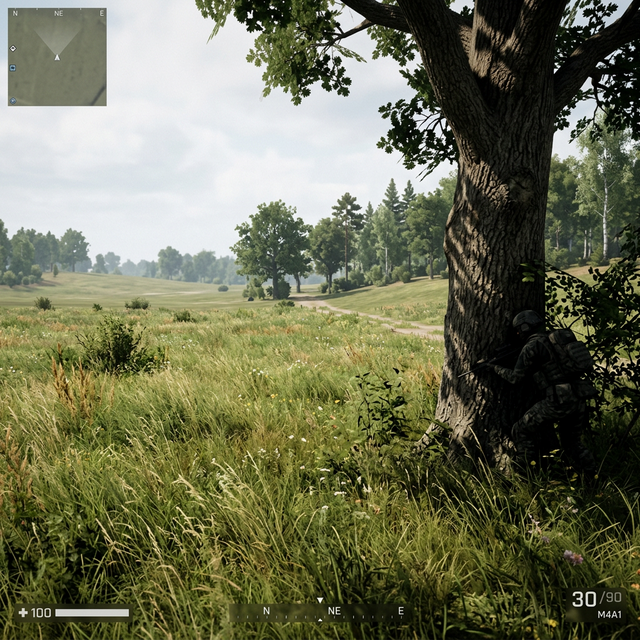
Test the workflow in your browser. Pick a scene, adjust the display until it looks right, then save the matching anchor. Dark, normal, and bright anchors should each feel clearly different so shadows lift detail, balanced scenes stay natural, and bright scenes calm down glare.
☀107
🌙1.00
☀0%
◐1.00
System Armed
Turn on Num Lock to use the live tuner controls.
01
Adjust the scene. Use the numpad controls below to change gamma, brightness, and contrast.
02
Arm the save. Press Numpad 0 when the current scene finally looks right.
03
Save the anchor. Press 1 for Dark, 2 for Normal, or 3 for Bright.
Before & After
From Dark Games To Bright Work Screens
🌑 Dark Scene
Before
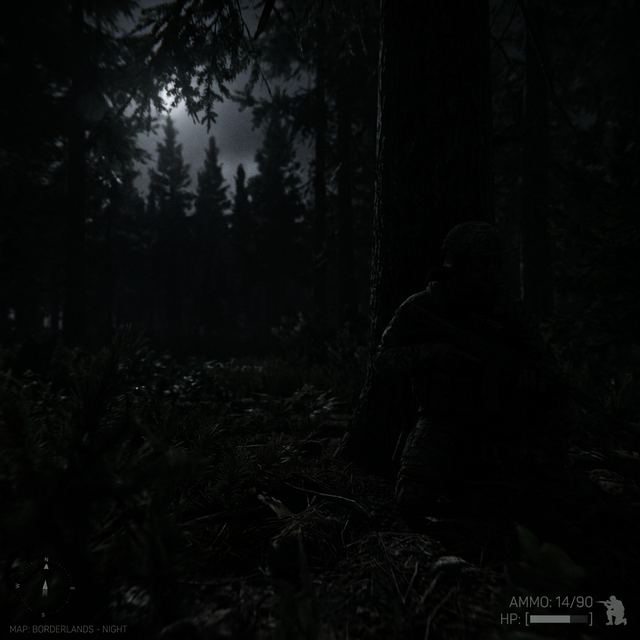
After
☀ 20🌙 1.70☀ 0%◐ 1.00
⛅ Normal Scene
Before
After
☀ 107🌙 0.90☀ +10%◐ 0.80
☀️ Bright Scene
Before
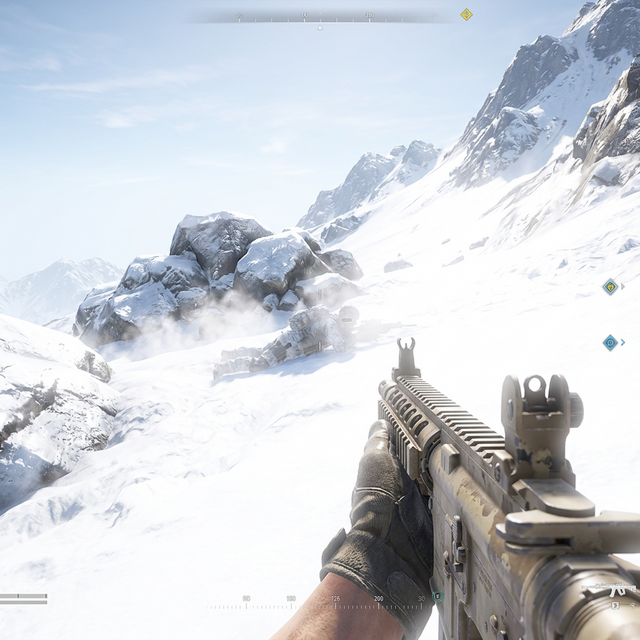
After
☀ 218🌙 0.50☀ 0%◐ 1.00
Real Results
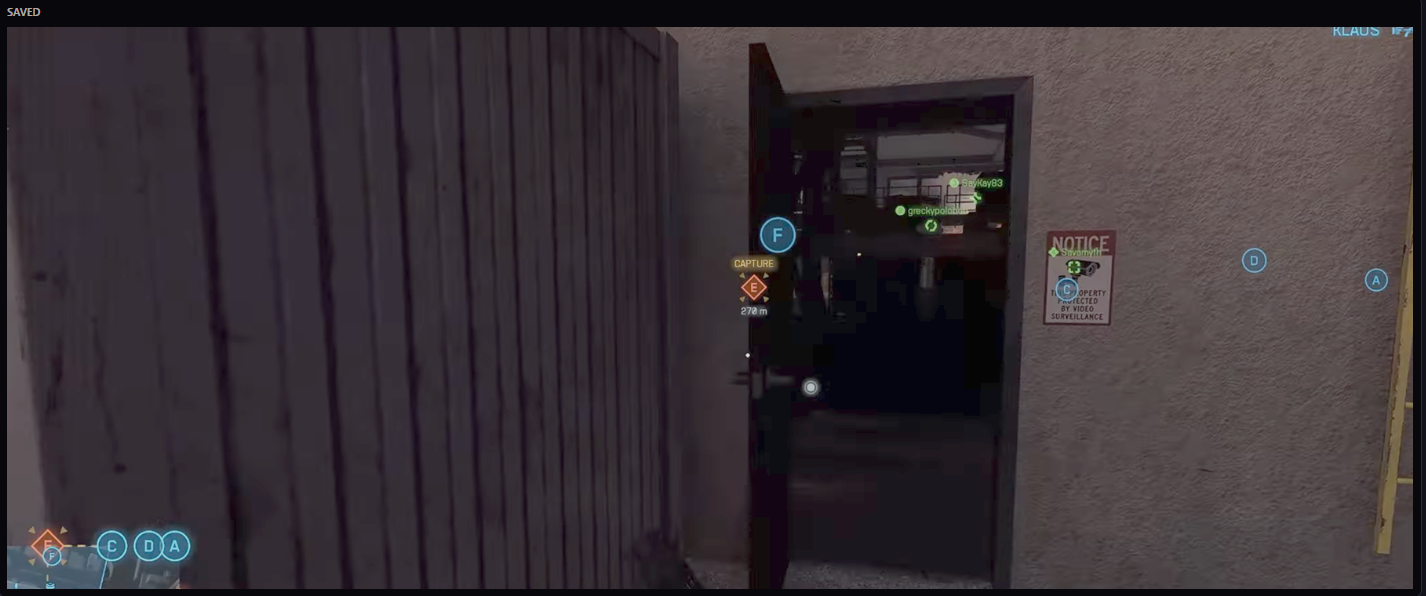
Uncover Hidden Detail Without Washing Out The Scene
BF6 Door Example
Before
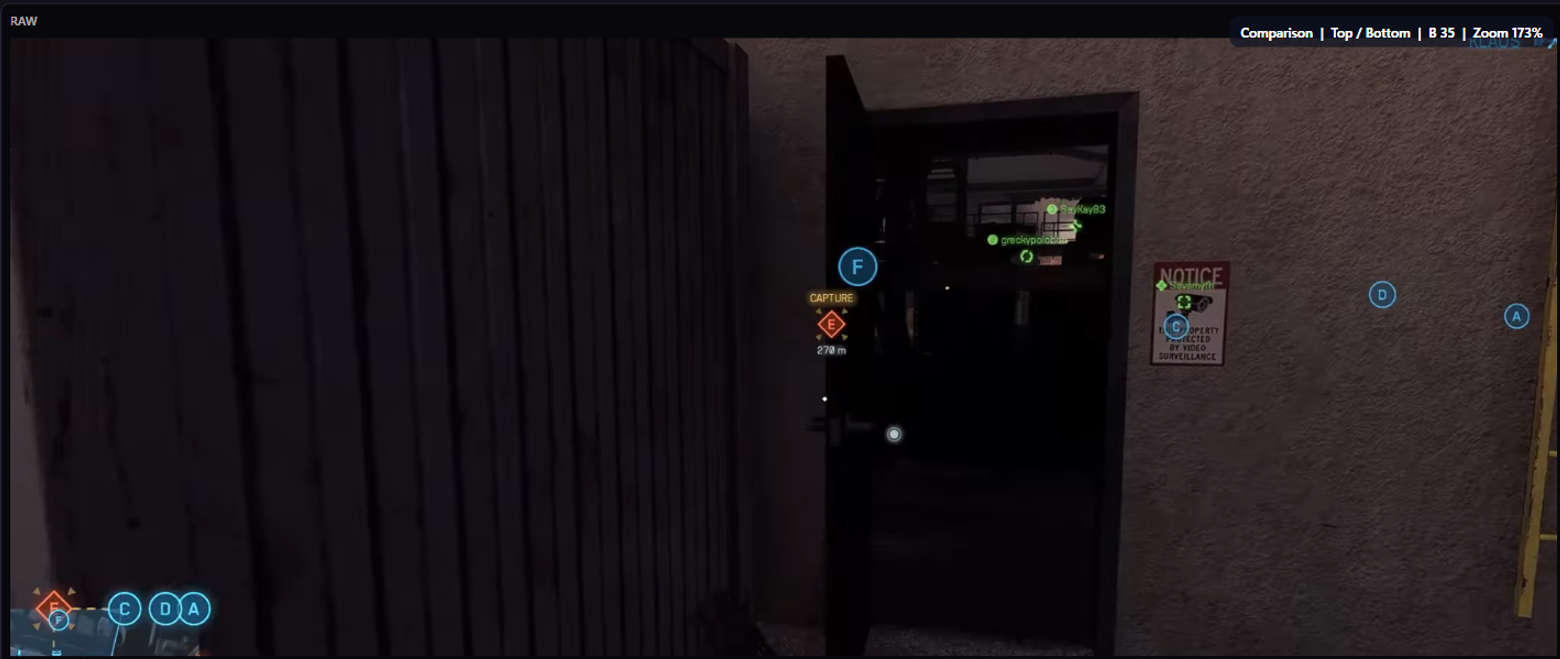
After
Underground Scene Example
Before
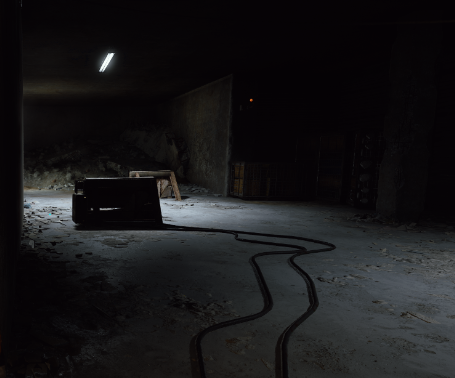
After
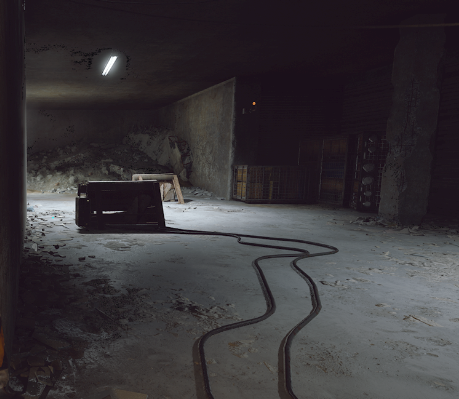
Before
After
Beyond Gaming
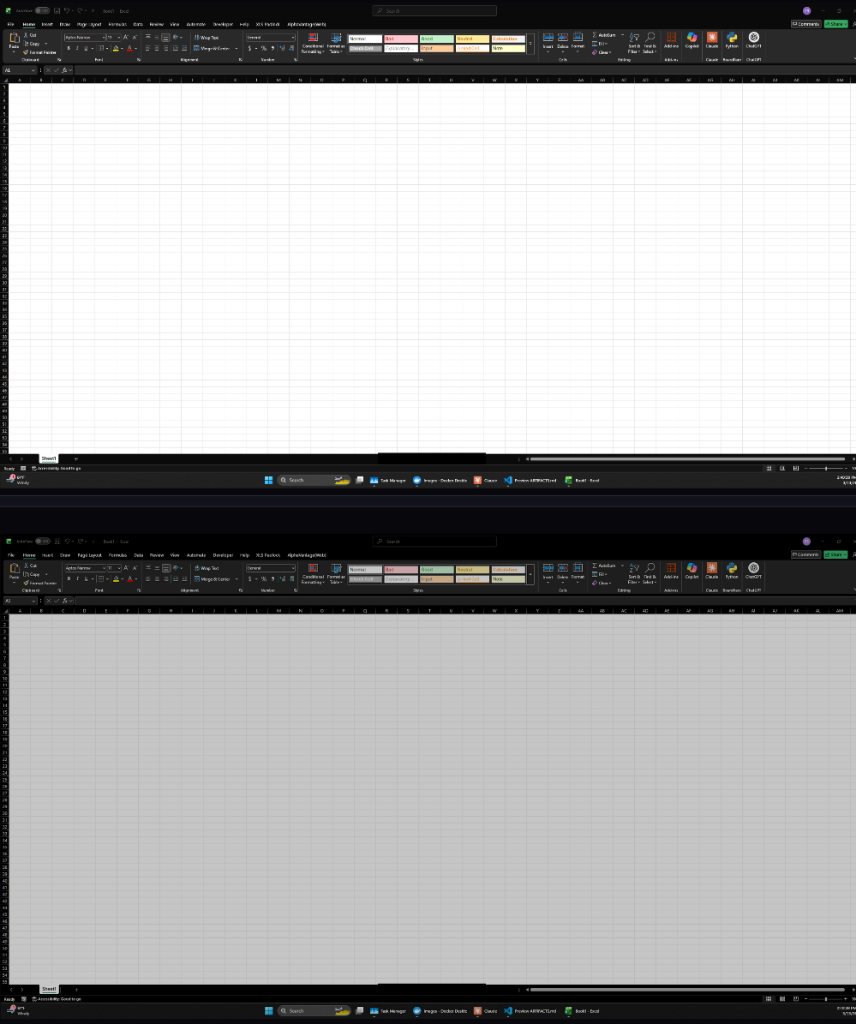
The same app can help when a white page feels too bright.
Excel, docs, dashboards, and other bright work screens can be just as exhausting as a crushed dark game, especially on harsh laptop panels or cheaper monitors.
SceneTune is not only for dark-scene recovery. It can also pull bright white pages, menus, and dashboards back into a range that feels easier to look at for longer sessions.
ExcelDocsDashboardsBright-page relief
Scene Anchors
Curve Editor Built Around Dark, Normal, And Bright Scene Anchors
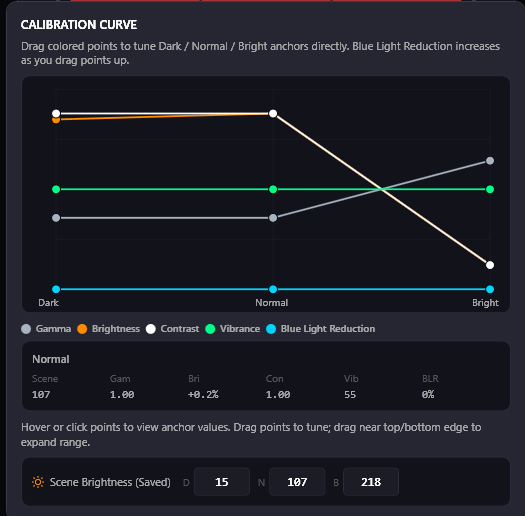
Tune Gamma, Brightness, and Contrast around the three scene states that matter most: low-light scenes, balanced scenes, and bright white-page or glare-heavy scenes.
SceneTune does not touch your GPU control panel settings. It works alongside your existing Nvidia, AMD, or Intel configuration without overwriting anything.
3 Curves3 AnchorsGamma / Bright / ContrastReal-Time
Dark Scene
Anchor
Shadow-heavy scenes, caves, corners, night maps, and other low-light scenes.Anchor
Scene brightness 20
Normal Scene
Anchor
Balanced scenes that already look close and only need light correction.Anchor
Scene brightness 107
Bright Scene
Anchor
White pages, bright menus, glare-heavy apps, and work screens like Excel.Anchor
Scene brightness 218
Precision Tuning
Choose How SceneTune Reads And Responds
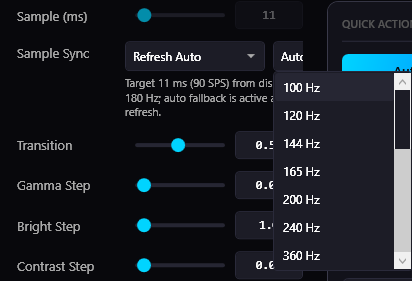
Use a 9-zone or 11-zone layout, choose Broad, Focused, or Spot Probe sampling, then adjust weighting, spacing, and probe size. Fixed refresh choices run from 5 to 20 Hz, while Auto uses a bounded display-aware cadence.
Fast and Smooth transition modes control how the output catches up when the scene changes. The sampling overlay shows the exact geometry being analyzed.
9 / 11 zones3 sampling modelsFast / SmoothDXGI + fallback
Multi-Display
Tune One Display. Calm The Rest Of The Desk.
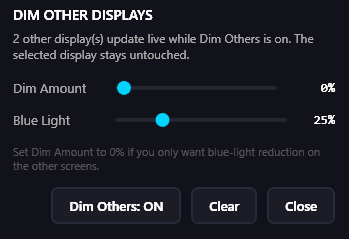
Choose the exact display SceneTune should watch and tune. When Dim Others is active, every non-selected display can receive independent dimming and blue-light reduction. Set Dim Amount to 0% if you only want warmer secondary screens.
Your selected display keeps its adaptive gamma, brightness, and contrast response separate from those secondary-display comfort controls.
Independent dimBlue-light filterPer-displaySelected-display targeting
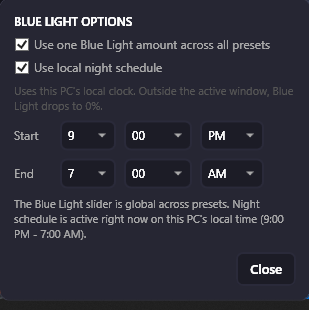
Blue Light Rules
Global Presets And Local Night Schedules
Use a single blue light reduction amount across all your presets, or let the app follow your local PC clock to dial up the blue-light filtering at night automatically.
Tied directly into the Dim Others logic, the night schedule makes sure all your screens step down harsh light when the sun sets, without needing you to switch presets manually.
Night scheduleGlobal overrideTime-basedAutomatic
Profiles And In-Game Control
Quick Slots, Auto-Load, And Remappable Hotkeys
Build a global default, create per-game profiles, and keep advanced map or scenario variations under the game they belong to. SceneTune can auto-load the right profile, while quick slots 1 through 8 keep your most-used setups close.
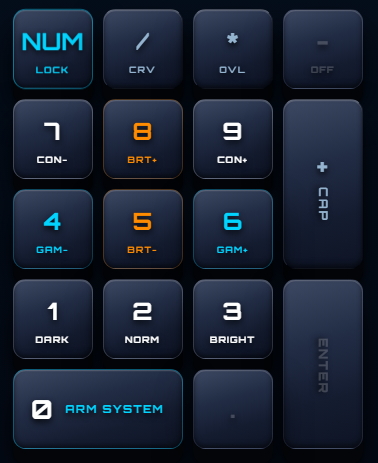
Enable, disable, or remap individual actions for scene saving, manual tuning, capture, and status control without alt-tabbing. The numpad layout below is the default, not a requirement.
Gamma Control
Gamma DownNUMPAD 4
Gamma UpNUMPAD 6
Brightness Control
Bright DownNUMPAD 5
Bright UpNUMPAD 8
Scene Saving
Arm SaveNUMPAD 0
Save DarkNUMPAD 1
Save NormalNUMPAD 2
Save BrightNUMPAD 3
Contrast & Utilities
Contrast DownNUMPAD 7
Contrast UpNUMPAD 9
Capture SceneNUMPAD +
Disable HotkeysNUMPAD -
Toggle SceneTuneNUMPAD *
Real Runtime Proof
Raw And Adjusted, Side By Side.
This 60-second clip shows the original capture beside SceneTune's telemetry-adjusted render, synchronized frame for frame.
Record 5, 10, 15, 30, or 60 seconds at 1080p or 1440p. SceneTune preserves aspect ratio and supports 3440 × 1440 ultrawide output when the required capture path is available.
Adjusted clips are rendered from SceneTune's recorded output telemetry. They are a useful comparison approximation, not a literal capture of the physical panel or final post-display signal.
CapabilitiesOne Adaptive Display System.
One Adaptive Display System.
Far More Than A Gamma Preset.
◈
Live Scene Analysis
Analyzes visible content on your selected display locally, then turns it into a live scene-brightness signal.
↻
Adaptive Triple Tuning
Continuously adjusts gamma, brightness, and contrast together as the content moves between dark, normal, and bright scenes.
◐
Calibrated Scene Anchors
Teach SceneTune what looks right on your display with Dark, Normal, and Bright anchors, then refine the response in the Curve Editor.
⊞
Profiles And Quick Slots
Keep global, per-game, and advanced scenario profiles organized, then switch complete tuning setups from quick slots 1 through 8.
⚡
HDR-Aware Modes
Choose Safe or Experimental HDR behavior with visible restore status. Results can vary by display, driver, and Windows setup.
◎
Saved Scenes And Clips
Save scene captures, compare raw and tuned simulations, and record short raw plus telemetry-adjusted clips for proof and calibration.
🖥
Selected Display Control
Choose which display SceneTune watches and tunes while secondary screens remain independent or follow separate comfort rules.
🌙
Blue Light And Dim Others
Schedule warmer output by local time, dim non-selected displays, or give secondary screens their own warmth without dimming them.
⌨
Hotkeys And Live HUD
Remap in-game controls, keep a compact status overlay visible, and inspect the real sampling zones without alt-tabbing.
◉
Color Where Supported
Add vibrance through Nvidia's direct path or AMD's approximation. Intel remains available for the core display-tuning path, not vibrance.
↺
Safe Restore
Restores intentionally modified displays on normal exit and includes recovery after an unclean shutdown.
⌂
Local By Design
Scene analysis, calibration, profiles, and output control stay on your PC. SceneTune does not read game memory or inject into game processes.
Built To Be Trusted
Your Screen Stays Local. Your Display Has A Way Back.
Scene analysis, calibration, captures, profiles, and output control run on your PC rather than a cloud vision service.
SceneTune uses display APIs and foreground or fullscreen detection. It does not read game memory, change game files, or inject into game processes.
Normal close, reset, and mode changes restore intentionally modified displays. Startup recovery also handles an unclean previous session.
PricingOne App. Pick Your
One App. Pick Your
Billing Schedule.
Every plan includes the complete SceneTune experience. Choose how often you want to be billed, or manage an existing plan from My Account.
United States (US) checkout detected automatically. VPNs and proxy networks can affect region detection.
7-day free trial
$2.08
/ monthYearly billing
7-day trial, then $24.99 per year
- Real-time gamma, brightness, and contrast tuning
- Dark, Normal, and Bright calibration anchors
- Profiles, HDR-aware modes, and multi-display tools
- Capture, compare, hotkeys, and safe restore
Windows 10/11 · local scene analysis · safe display restore · gamer-first, useful beyond games
Frequently Asked QuestionsClear Answers On
Clear Answers On
Setup, Performance, And Billing.
Questions about scene analysis, HDR, multi-display use, trials, or cancellation should not require guesswork.
How It Works
How is this different from my monitor's Game Mode or GPU settings?
Most monitor presets and GPU control panel settings are static. Once you set them, they stay that way no matter what is on screen.
SceneTune reads the screen in real time and reacts to your saved Dark, Normal, and Bright Scene Anchors, so a dark cave and a bright spreadsheet do not have to share the same tuning.
Does this replace my Nvidia, AMD, or Intel control panel?
No. SceneTune is meant to work alongside your existing monitor and GPU setup instead of forcing you to rebuild your base calibration every time the content changes.
Keep your underlying setup where you want it, then let SceneTune handle the live scene-to-scene adjustments.
Is SceneTune AI?
No. The current engine is a local, deterministic display-tuning system. It measures visible screen content and maps that signal through the Dark, Normal, and Bright calibration you set.
Gaming & Performance
Will this cause input lag or lower my FPS?
SceneTune does real capture and display work, so we do not claim zero performance impact on every PC. Sampling cadence, capture model, and transition behavior are adjustable so you can choose the response that fits your system.
Runtime timing diagnostics are also available for checking capture and apply behavior on your own setup.
Does it work with HDR?
SceneTune detects HDR and advanced color, then offers Safe and Experimental output modes with restore visibility. HDR behavior can vary by monitor, driver, and Windows configuration, so identical results are not promised on every HDR system.
Does SceneTune read or inject into my games?
No. It uses screen capture, display APIs, and foreground or fullscreen detection. It does not read game memory, modify game files, or inject into the game's render process. That materially lowers integration risk, but no software can promise universal compatibility with every protected environment.
Setup & Displays
Can I use this on multiple monitors?
Yes. SceneTune can keep real-time tuning focused on your main display while secondary displays use separate dimming and blue-light settings through Dim Others.
What are Scene Anchors?
Scene Anchors are your three saved reference states: Dark, Normal, and Bright.
Instead of fighting with complex curves all day, you tune those three core scenes once and let SceneTune transition between them as your screen content changes.
Do adjusted clips show the exact monitor output?
They show a telemetry-driven approximation rendered from the output values SceneTune recorded during the clip. They are useful for comparison, but they are not a literal recording of the physical panel or final post-display signal.
Trials & Subscriptions
Is there a free trial?
Yes. Monthly, quarterly, and yearly subscriptions start with a 7-day trial, so you can use the full app on your own setup before the paid period begins.
Can I cancel anytime?
Yes. You can restart, manage billing, update your payment method, or cancel through My Account.
If you cancel, access stays active through the current paid period and future renewals stop.