Adaptive Display Tuning For Windows

See What You
Couldn't See Before.

iGotEyes tunes gamma, brightness, and contrast in real time so dark games stay readable, streaming scenes feel more balanced, and bright work screens like Excel stop blasting your eyes. Gamer-first, still useful anywhere you use a screen, with HDR-aware modes already in the mix.

See Launch Pricing Try It Live
GamesDark-scene visibility
VideoBalanced playback
WorkBright-page relief
HDRSafe plus experimental modes

Interactive Scene Tuner

Test the workflow in your browser. Pick a darker or brighter scene, adjust the display, then save the anchor that matches it. Dark, normal, and bright anchors all need to feel clearly different.

Display Scene
107
🌙1.00
100
100
Before
SYSTEM ARMED
✓ PRESET SAVED
01 Adjust The Scene — Use keys 4-9 for GAM, BRT, CON
02 Arm The Save — Press 0 when the current scene looks right
03 Save The Anchor — Press 1 for Dark, 2 for Normal, or 3 for Bright
NUMLOCK
/CRV
*OVL
-DEC
7CON−
8BRT+
9CON+
+CAP
4GAM−
5BRT−
6GAM+
1DARK
2NORM
3BRT
ENTER
0ARM SYSTEM
.

From Dark Games To Bright Work Screens

🌑 Dark Scene
Before
Dark Before
After
Dark After
107 🌙 1.50 140 100
🌤 Normal Scene
Before
Normal Before
After
Normal After
72 🌙 1.20 90 100
☀️ Bright Screen
Before
Bright Screen Before
After
Bright Screen After
218 🌙 0.50 100 100
Bright Work Example Excel / Docs / Dashboards
Before
After

The same app can help when a white page feels too bright.

Excel, docs, dashboards, and other bright work screens are a real pain point, especially on harsh laptop panels or cheap monitors.

The point is simple: the same tuning logic that helps in darker games can also take the edge off white work screens without losing the gamer-first hook.

Excel Docs Dashboards Bright-page relief
Calibration Curve Editor

Curve Editor With Dark, Normal, And Bright Scene Anchors

Drag anchor points to tune Gamma, Brightness, and Contrast for the three scene states that matter most: dark scenes, normal scenes, and bright scenes.

Vibrance and Blue Light stay as simpler linked sliders in the main tuning stack, so the curve editor stays readable while users can still soften harsh screens or add color punch when they want it.

Users should immediately understand which anchor maps to a darker scene, which one handles balanced lighting, and which one tones down bright white pages or glare-heavy scenes.

Dark Scene Anchor Shadow-heavy scenes, caves, corners, and low-light gameplay.
Scene brightness 20
Normal Scene Anchor Balanced scenes where the screen already feels mostly right.
Scene brightness 107
Bright Scene Anchor White pages, glare, bright menus, daylight scenes, and work apps like Excel.
Scene brightness 218
3 Curves Linked Color Sliders 3 Anchors Real-Time
Settings Panel

Sampling And Transition Controls That Read Like Real Settings

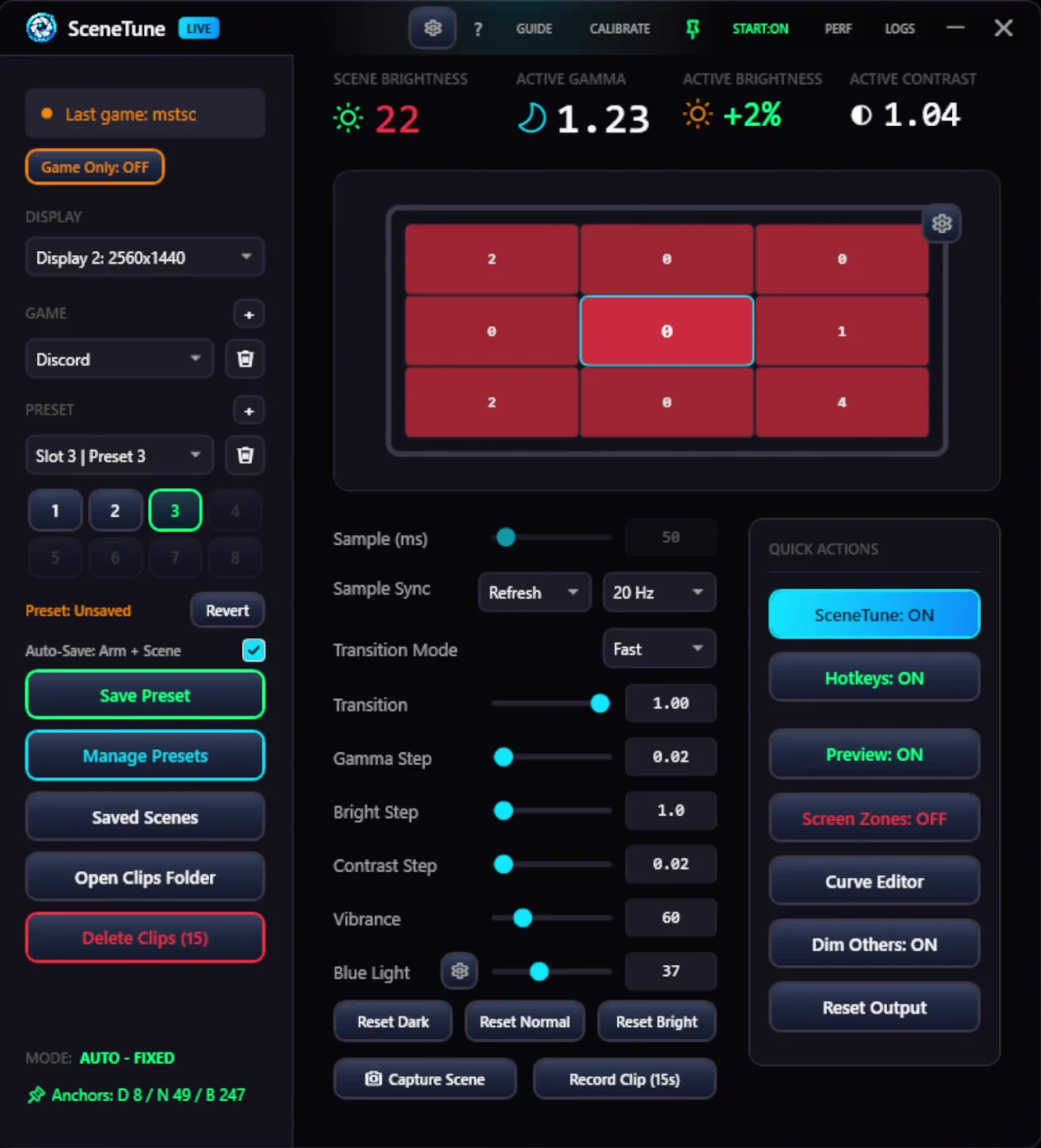
Sampling cadence, transition smoothness, refresh tracking, and step sizes read like real controls. The value here is control without pretending every machine behaves the same.

Sampling cadence Transition control Safe defaults
Hotkey Configuration

Remappable Hotkeys

Every single action — from saving scenes to adjusting gamma — is mapped to a unique numpad key. Enable, disable, or remap any hotkey to fit your workflow. No collisions, no alt-tabbing.

Includes the new Numpad / hotkey for Capture Scene.

11 Actions Fully Remappable Zero Collisions

Everything Your Eyes Need.
Nothing You Don't.

Multi-Zone Scene Analysis

Samples what is happening on screen so darker games, normal scenes, and bright screens can each get a more appropriate response.

Real-Time Auto Adjust

Adjusts dynamically as content changes so you are not constantly jumping into monitor menus or Windows settings.

Clear Dark / Normal / Bright Anchors

Three named anchor points make the curve editor understandable. Users can tell at a glance which scene state they are shaping.

Per-App And Per-Game Presets

Keep one tuning style for a dark game, another for video, and another for work without redoing everything every time you change tasks.

HDR-Aware Modes

HDR is already part of the story. The safer message is HDR-aware modes with experimental behavior where needed, not a blanket promise that every HDR setup behaves perfectly.

Capture And Compare

Review before and after states so users can actually trust what changed instead of guessing whether the app is doing the right thing.

Hands-On Control Without Looking.

Gamma Control

Gamma DownNUMPAD 4
Gamma UpNUMPAD 6

Brightness Control

Bright DownNUMPAD 5
Bright UpNUMPAD 8

Scene Saving

Arm SaveNUMPAD 0
Save DarkNUMPAD 1
Save NormalNUMPAD 2
Save BrightNUMPAD 3

Contrast & Capture

Contrast DownNUMPAD 7
Contrast UpNUMPAD 9
Capture SceneNUMPAD /
Toggle iGotEyesNUMPAD *

All hotkeys are fully remappable in Settings. Use unique numpad keys to avoid collisions.

Gamer-First.
Not Subscription-First.

A one-time purchase fits this product better than a monthly treadmill. Keep the offer simple, honest, and easy to understand.

Web Demo
$0
In-browser preview
  • Scene tuner preview
  • Before / after proof
  • Dark, normal, bright examples
  • Work-screen concept demo
Get Launch Pricing

Windows 10/11 · Local scene analysis · Safe display restore · Gamer-first, useful beyond games